


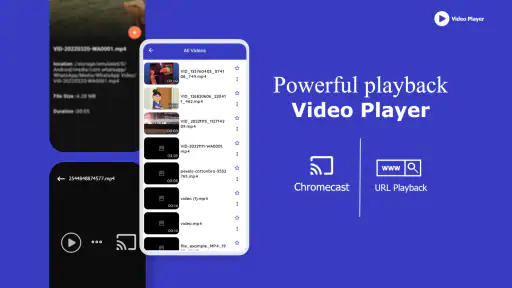
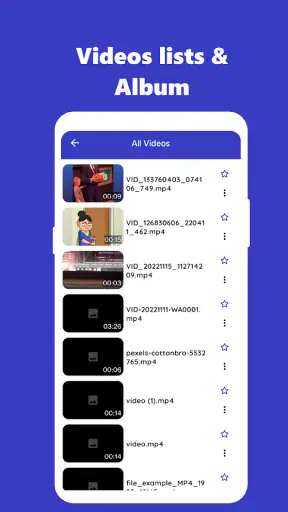
I approached Video Player Subtitle Support as a practical Android video tool rather than expecting it to replace every specialist media player. Its purpose is straightforward: open videos, handle subtitles and closed captions, and make streaming or locally stored content easier to watch across common formats. That sounds simple, but video apps are often judged by what happens when a file refuses to play, subtitles appear out of sync, or a stream behaves differently from a downloaded clip.
In my experience, this app is most appealing when I want a single place for everyday playback without paying an upfront fee. It is a free app from Galaxy studio apps, rated for Everyone, and it has passed the point of being an obscure experiment, with over a million installs. The overall average sits at 3.8, which feels consistent with an app that can be useful for ordinary viewing but may require patience when a particular file, subtitle track, or stream does not cooperate.
Where playback usually gets stuck
The first surprise with any “plays everything” video application is that the file name is not the whole story. Two videos can look similar in a file manager while using different internal video, audio, or subtitle formats. One may start immediately, while the other shows a black screen, plays without sound, or opens with captions missing. I would not treat that as proof that Video Player Subtitle Support is broken. It is often a compatibility problem between the file’s encoding and the device.
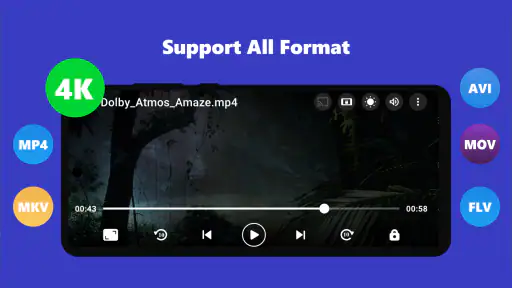
The app’s broad format support is useful, but broad support should not be read as a guarantee that every unusual file will behave perfectly. A video downloaded from a camera, a screen recorder, a messaging app, or a desktop editor may contain unusual settings. If the app opens the file but playback is choppy, I first check whether other videos run normally. That quick comparison separates an isolated file problem from a wider app or phone problem.
Subtitles create their own layer of friction. A caption file can be present beside a video and still fail to load if its name does not match closely enough, if it is stored somewhere the app is not looking, or if the text encoding is unusual. When captions are available but unreadable, the issue may be the subtitle file rather than the player. I find it more productive to test a second subtitle file than to repeatedly restart the same video.
Timing is another common stumbling block. If dialogue consistently arrives before or after the words on screen, adjusting subtitle timing is the sensible response when the player offers that control. If the delay changes throughout the movie, however, the subtitle track may have been created for a different cut of the video. A fixed adjustment can help at the beginning and make the ending worse. That distinction matters because it prevents you from blaming the app for a mismatch that is built into the media files.
Streaming adds more variables than local playback. A stream can pause because of an unstable connection, a busy server, or a source that does not deliver data consistently. If a locally saved video plays smoothly while one online stream repeatedly buffers, I would investigate the stream first. The player is only one part of that chain.
What I check before changing anything
My first check is simple: I close and reopen the video, then try another file. This sounds basic, but it tells me whether the failure is repeatable. I also confirm that the phone is running a compatible Android release. The listed minimum is Android 8.0, so an older device below that requirement is not a sensible test environment.
Next, I check the video and subtitle locations. If I moved a file recently, the player may still be showing an old entry or may not be scanning the folder I expect. Opening the file from its current location, when possible, is a useful way to avoid guessing. I also keep the subtitle and video together while testing and use matching, uncomplicated file names. This is not glamorous troubleshooting, but it removes several avoidable sources of failure at once.
For a subtitle problem, I test the same video with captions switched off and then try a different subtitle file. If the video itself plays correctly, the result points toward the caption track or its naming rather than the basic video engine. If both the video and captions fail, I move on to checking the media file and the device.
I also avoid judging streaming performance while several other apps are consuming the connection. A quick test on a stable network is more informative than repeatedly pressing play during a weak signal. If the stream only fails in one location, that is a strong clue that the network path or source is involved.
Small setup habits that save time
One useful habit is to keep a known-good test video on the phone. It gives me a reference point whenever a new file refuses to play. I use a short clip that has already worked before, then compare the problem file with it. This is more reliable than assuming every playback issue has the same cause.
For subtitles, I prefer to test one change at a time. First I confirm the file is present, then I check whether it loads, and only after that do I adjust timing or appearance. Changing the file name, folder, subtitle track, and playback settings simultaneously makes it impossible to know which action helped.
It is also worth checking the app’s current version before spending too long on a problem. The current version is 2.2.0. Keeping the installed copy current can remove issues already addressed by the developer, although an update cannot repair a damaged video or a subtitle file made for another release of the content.
The free entry point makes this experimentation easy. At the same time, the app includes optional in-app purchases ranging from under a dollar to almost a hundred dollars per item. I would look carefully at what an offered purchase changes before confirming it, especially if I only need basic playback. The presence of purchases does not automatically make the free experience unsuitable, but it does mean I would not tap through payment screens casually.
Recovering a broken viewing workflow
When something goes wrong, I prefer a recovery sequence that starts with the least disruptive action. I stop playback, reopen the file, and try another video. If the second video works, I focus on the original media. If nothing works, I restart the app and then the phone. These steps may not feel advanced, but they preserve the useful information gathered from each test.
If the video plays but subtitles do not, I remove the subtitle file from the equation and confirm that the picture and sound are stable. Then I place the subtitle file alongside the video, use a matching base name, and try again. If the player presents more than one caption option, I select the intended track rather than assuming the first one is correct. This matters with files that contain multiple languages or duplicate caption streams.
A practical example is watching a downloaded lecture during a commute. The video opens, but the captions are absent. Instead of repeatedly tapping the caption button, I would first check whether the subtitle file was downloaded separately. If it was, I would confirm that both files are in the same folder and that their names correspond. If captions still fail while the video works, I would test the subtitle file with another compatible player. That comparison tells me whether the issue follows the caption file.
Another useful scenario is a family movie night with a file copied from a computer. If the phone shows video but no audio, I would try a different clip immediately. If the other clip has sound, the original may use an audio format the device or app handles poorly. Converting the file on a computer may be more efficient than spending the evening changing random phone settings. In that situation, Video Player Subtitle Support remains useful for the files it can handle, but it is not a repair tool for every encoding.
For a stream that keeps buffering, I would switch briefly to a local video. If local playback is smooth, I avoid clearing settings or reinstalling the app without a reason. I would instead retry the stream later, use a more stable connection, or check whether the source itself is available. This approach protects my local library and avoids turning a network problem into a new setup problem.
Closed captions deserve a slightly different check from ordinary subtitle files. Captions may be part of the stream or video rather than a separate document. If they appear on one source but not another, the difference may be in how each source carries its caption track. I would not assume that a caption option shown in one video must be available in every video.
When a different player is the better tool
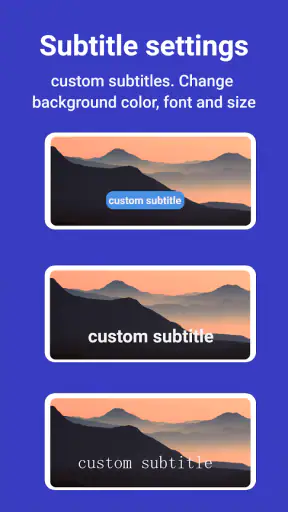
I would choose a more specialized alternative when my library depends on unusual codecs, advanced audio routing, extensive subtitle styling, or detailed library management. A general-purpose player can cover daily viewing without offering every control that a specialist provides. If I regularly watch foreign-language content and need precise subtitle synchronization, multiple track management, or more elaborate playback controls, I would compare those needs against this app before making it my only player.
I would also look elsewhere if my main requirement is a polished streaming catalog rather than playback of videos I already have. Video Player Subtitle Support is positioned around playing video, subtitles, streaming, and captions; it is not something I would install expecting a subscription library, recommendations, or a full entertainment service. Those are different jobs.
On the other hand, people who simply want to open assorted clips on an Android phone may appreciate its direct focus. It is a reasonable fit for someone who keeps videos locally, occasionally uses captions, and wants to try a free player before committing to a paid option. The Everyone rating also makes it suitable for a broad household audience, although the actual content watched obviously depends on the files or streams selected by the user.
When the app is not the cause
It is easy to blame the player because it is the visible part of the process. Yet a damaged download, incomplete transfer, unsupported audio track, mismatched subtitle timing, or unstable stream can produce the same symptoms. My rule is to reproduce the problem with a second file and, when practical, a second player. If only one file fails everywhere, I treat that file as the main suspect. If many files fail only here, then the app deserves closer attention.
Storage conditions can matter as well. A file that was interrupted during copying may retain a familiar name while being incomplete. Recopying it from the original source is more useful than repeatedly reopening it. Similarly, a subtitle file that contains broken characters may need to be saved in a more compatible text encoding. The player can display what the file provides, but it cannot always correct malformed caption text.
Device performance is another consideration. Older phones may struggle with high-resolution or demanding video even when the app supports the format in principle. If playback improves after closing other demanding apps, the limitation may be available processing power rather than subtitle support. I would set realistic expectations before deciding that the player is unreliable.
Permissions and file access can also affect what appears in a library, particularly after moving content or changing Android settings. Rather than granting every request automatically, I would review what the app is asking to access and make sure it can reach the folder containing the videos I actually want to play. If a file is visible through the phone’s file manager but absent inside the player, that location mismatch is worth checking.
How I would use it day to day
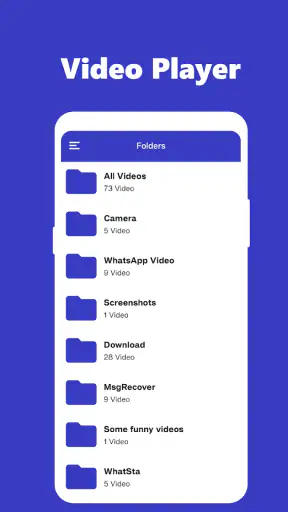
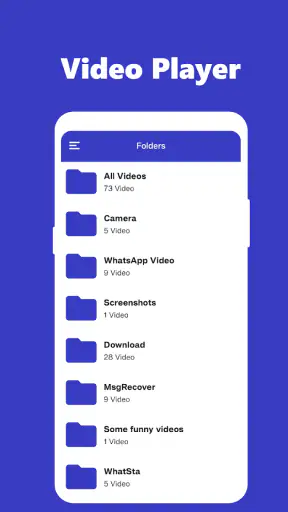
For routine use, I would keep my videos organized in a small number of folders and store matching subtitle files beside the relevant videos. I would test a new subtitle track before relying on it for travel or study. That one-minute check is valuable because a caption file that looks correct in a download folder may still be mistimed or encoded differently from the video.
I would also use the app as a flexible second player rather than immediately making it the only one on the phone. That gives me a fallback when a particular file behaves differently. Over time, the comparison tells me whether its strengths match my library. If most of my content opens cleanly and captions work as expected, the simple workflow may be all I need. If every week brings a new compatibility problem, a more specialized option could save time.
The app’s release history also gives it some staying power: it first appeared on August 18, 2020, and continues with version 2.2.0. I see that as useful context rather than a promise that every device or file will behave identically. Android phones differ widely, and media files vary even more. My recommendation would still depend on testing the types of videos I personally watch.
Because the app is free to install, the practical decision is low risk if I am comfortable checking the purchase prompts and testing it with ordinary files. I would be more cautious about paying for optional items until I understood exactly what they provide. The wide purchase range means the cost of extras could matter to someone who expected every function to be included at no charge.
My practical verdict
I see Video Player Subtitle Support as a useful, accessible Android player for people who want local video playback with subtitle and caption support without an upfront price. Its broad purpose makes sense for mixed everyday libraries, and the combination of video formats, subtitles, streaming, and captions covers the needs of many casual viewers.
My recommendation comes with a clear condition: use a short test workflow before depending on it. Try a known-good video, then your usual file, then a subtitle track. If all three behave properly, the app can become a convenient part of your routine. If one file fails, investigate that file before reinstalling anything. If many files fail, compare the results with another player and consider the phone’s performance, storage, and Android version.
I would recommend it to students watching downloaded lessons, families opening assorted clips, and viewers who need captions but do not want a complicated media center. I would skip it as my sole player if I require highly specialized codec handling, advanced subtitle tools, or a full streaming-service experience. For everyone in between, its free installation makes a sensible trial worthwhile.
The average rating of 3.8 reflects the balanced conclusion I reached: this is a practical tool, not a guarantee against every media problem. When the files are compatible and the setup is tidy, it can make watching straightforward. When the source, subtitle track, or device is the real obstacle, knowing how to isolate that cause is just as important as the player itself. Its best quality is flexibility, but its best results come from realistic expectations and a few careful checks.


